Table of contents
- How to make a quiz in Google Forms
- Can Google Forms quizzes grade themselves?
- When do respondents see their Google Forms quiz score?
- Google Forms quiz settings
- How do you make a Google Forms quiz harder to cheat on?
- How do you import Google Forms quiz grades into Google Classroom?
- What is locked mode in Google Forms?
- What can’t a Google Forms quiz do?
- When is Google Forms the right choice for a quiz?
- Responsly quizzes: timed, drawn from a pool, scored your way
- Summary
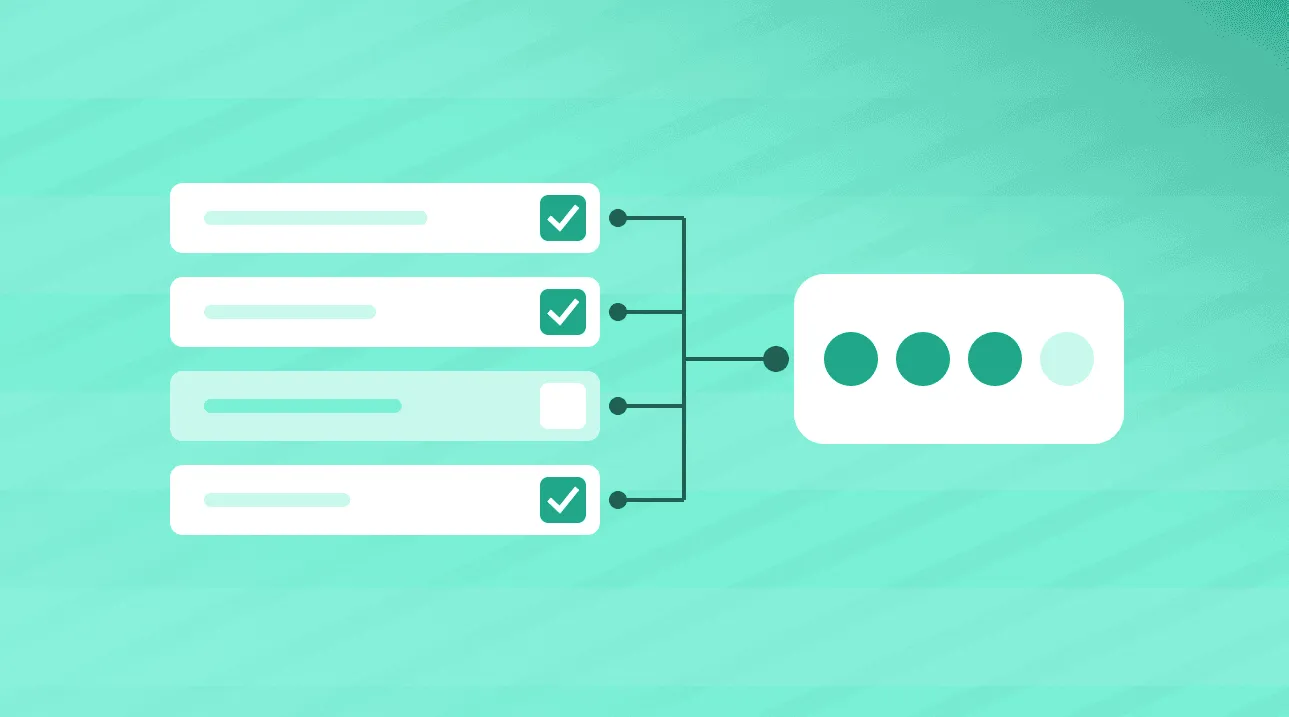
A Google Forms quiz is an ordinary Google Form with the “Make this a quiz” setting turned on, which adds an answer key, point values and grading to the questions you choose. This guide is for teachers, trainers and HR teams who want a scored knowledge check without another tool. It covers how to make a quiz in Google Forms step by step, which question types grade themselves and which wait for you, every Google Forms quiz setting in one reference table, and the two education-only features: Google Classroom grade import and locked mode. Every Google Forms instruction below was checked against Google’s own help pages. The last part is the honest one: what a Google Forms quiz cannot do, and when a different quiz maker fits better.
How to make a quiz in Google Forms
Open a form in Google Forms, click Settings at the top and turn on Make this a quiz. Then add your questions, open Answer key on each one, mark the correct answers and set the points. Decide when grades are released and what respondents see, preview the quiz, and publish it before you share the link.
If you searched for a “Google Docs quiz”, this is the same feature: quizzes live in Google Forms, and Google documents them in its own guide to creating and grading quizzes in the Docs Editors Help Center.
Step 1: Turn the form into a quiz
- Open a form in Google Forms at forms.google.com, or use Google’s own shortcut, g.co/createaquiz.
- At the top of the form, click Settings.
- Turn on Make this a quiz.
Step 2: Decide whether to collect email addresses
In Settings, next to Responses, open the arrow and turn on Collect email addresses. It is optional, but grading individual responses, releasing grades later by email and Classroom grade import all depend on it.
Step 3: Add questions and build the answer key
- Click Add question and choose the question type.
- Write the question and its answer options.
- In the bottom left of the question, click Answer key.
- Select the correct answer or answers.
- In the top right, set how many points the question is worth.
Every question starts at zero points; to give all questions the same value, set it once in Settings under the global quiz defaults. If you are still drafting the items, our guide to multiple choice questions covers stems, keys and distractors.
Step 4: Add answer feedback
Inside the answer key, Add answer feedback attaches a written explanation or a YouTube video to an answer. One sentence on why the tempting option is wrong teaches more than the red mark next to it.
Step 5: Choose when grades are released and what people see
In Settings, under Release grades, choose Immediately after each submission (the default) or Later, after manual review. Under Respondent settings, choose whether people can see missed questions, correct answers and point values.
Step 6: Preview, publish and share
Take the quiz yourself in Preview, then click Publish: an unpublished form does not open even for someone who has the link. Share it by email, as a link or embedded on a website. In a Google Workspace account, turn off Restrict to users in [your domain] and its trusted organizations under Responses to reach people outside your organisation.
Can Google Forms quizzes grade themselves?
Partly. Google Forms grades a question automatically when it has an answer key, and answer keys exist for multiple choice, checkboxes, dropdown, short answer, multiple choice grid and checkbox grid. Paragraph questions have no answer key, so you award their points by hand, and Google lists short answer among the formats that may still need manual grading.
| Question type | Answer key | How it is graded |
|---|---|---|
| Multiple choice, checkboxes, dropdown | Yes | Automatically against the key |
| Short answer | Yes | Against the answers in the key; Google notes it may need manual grading |
| Multiple choice grid, checkbox grid | Yes | Automatically; cannot be graded question by question |
| Paragraph | No | Manually |
| File upload, linear scale, rating, date, time | No | Points and feedback can be added manually |
The practical rule: use short answer only where the correct answer has one obvious form, such as a number or a single term, and plan grading time for everything else.
Grade individual responses
If you collect email addresses, open Responses → Individual, enter the points each answer earned in the top right of the question, add feedback if you want, and click Save at the bottom.
Grade question by question
Responses → Question shows every answer to one question at once. Click Mark correct for full points, type a number for partial points, or Mark incorrect for none, then save. Google points out that this view is faster and reduces potential bias, because identifying information does not appear by default. It is not available for grid questions.
Responses → Summary then shows frequently missed questions and the average, median and range of scores. A question most people miss is often badly worded rather than hard, so check it before you re-teach.
When do respondents see their Google Forms quiz score?
By default, immediately after they submit. In Settings → Release grades you can switch to Later, after manual review, which requires collected email addresses. Separately, Respondent settings control whether people see their missed questions, the correct answers and the point values, so you can release a score without handing out the answer key.
To release held-back grades, open Responses → Individual, click Release score, tick the people to notify and click Send emails and release.
Two habits save trouble. If any question is graded by hand, release later, or people see a score before you have awarded the manual points. And hide correct answers when groups sit the quiz at different times, or the first group’s results become the second group’s answer key.
Google Forms quiz settings
Every setting that changes how a quiz behaves, where Google puts it, and the catch.
| Setting | Where to find it | What it does | Catch |
|---|---|---|---|
| Make this a quiz | Settings | Adds answer keys, points and grading | Switching it off loses grading settings and manual grades |
| Release grades | Settings | Immediately after submission, or later after manual review | Releasing later needs collected emails |
| Respondent settings | Settings | Shows or hides missed questions, correct answers, point values | Separate from when grades are released |
| Global quiz defaults | Settings | One default point value for every question | Questions start at zero without it |
| Collect email addresses | Settings → Responses | Records who answered | Needed for individual grading and Classroom import |
| Limit to 1 response | Settings → Responses | One submission per person | Respondents must sign in to a Google Account |
| Shuffle question order | Settings → Presentation | Random question order per respondent | Shuffled once per email address |
| Shuffle option order | Question → More | Random answer order | Multiple choice, checkboxes and dropdown only |
| Response validation | Question → More | Rules an answer must follow before submission | Rules differ by question type |
| Locked mode | Settings → Make this a quiz → Chromebook settings | Locks a school-managed Chromebook during the quiz | Google Workspace for Education only |
How do you make a Google Forms quiz harder to cheat on?
Shuffle the question order and the answer order, collect email addresses, and limit responses to one per person. Google shuffles only once per email address, so send the quiz to individual addresses rather than a Google Group. On school-managed Chromebooks, locked mode adds a lockdown; on any other device, these settings are as far as Google Forms goes.
Shuffle. Turn on Shuffle question order under Settings → Presentation, unless questions must appear in a specific order, which Google itself warns about. For answer options, open a multiple choice, checkbox or dropdown question, click More and choose Shuffle option order.
One response per person. Settings → Responses → Limit to 1 response. Google then requires respondents to sign in to a Google Account: no obstacle in a school that runs on Google, a barrier for customers or job candidates.
Response validation. Under More → Response validation, short answer takes number, text, length or regular expression rules, paragraph takes length or regular expression, and checkboxes take “select at least”, “at most” or “exactly”. In a quiz, “select exactly 2” tells people how many options to pick, and a number rule keeps calculation answers in a form your key can match.
How do you import Google Forms quiz grades into Google Classroom?
Create the quiz from Classroom: Classwork → Create → Quiz assignment, turn on Grade importing, and build the quiz in the Google Form that Classroom attaches. After students submit, open the assignment and click Import grades on the Student Work page. Google documents this for teachers with a Google Workspace for Education account.
Grade import has strict conditions:
- The quiz must be the only attachment on the assignment.
- Students are limited to one response and must be in the same domain as the teacher.
- The form must collect student email addresses.
- Changing these settings or editing the assignment after you post it can block the import, and a form attached as a link cannot be imported at all.
The import brings in all grades at once and overwrites grades already on the assignment, so if the quiz is only part of it, import first. Grades in Forms and Classroom stay separate: after changing a score in Forms, click Import grades again.
What is locked mode in Google Forms?
Locked mode keeps students inside the quiz on a Chromebook: they cannot browse other websites or open other apps, and some extensions and keyboard shortcuts are disabled. It needs a Google Workspace for Education account, a school-managed Chromebook for every student and ChromeOS 75 or later. Turn it on in Settings → Make this a quiz → Chromebook settings.
According to Google’s locked mode documentation, locked mode collects email addresses and limits the quiz to your domain, and the teacher gets an email if a student exits the quiz or opens another tab. Unmanaged devices cannot open a locked quiz at all, so every student needs a managed Chromebook. Classroom offers the same switch when you create a quiz assignment.
What can’t a Google Forms quiz do?
Going by Google’s own documentation, a Google Forms quiz has no time limit and no way to draw a different set of questions for each respondent: the only randomisation Google describes is shuffling question order and answer order. Manual grading, delayed release and Classroom import all depend on collecting email addresses.
- No timer. None of the quiz settings Google documents limit time. Timers exist as third-party add-ons in the Google Workspace Marketplace, which means installing and authorising another vendor’s tool on your account.
- No question pool. Everyone answers every question. Shuffling changes the order, not the content, so two people sitting side by side get the same paper.
- One response per person requires a Google sign-in, which rules out respondents without a Google account.
- Switching quiz mode off is destructive. Grading settings and manual grades are not restored if you turn it back on; Google points to Google Takeout to retrieve the manual grades.
When is Google Forms the right choice for a quiz?
When the quiz is low-stakes, the people taking it already have Google accounts, and especially when you teach in Google Classroom: Google offers Workspace for Education Fundamentals, which includes Forms and Classroom, at no cost to qualifying institutions. It is the wrong choice when the score has to hold up, the quiz must be timed, or respondents sit outside Google.
Google Forms is the right tool when:
- You teach with Google Classroom and want quiz assignments, grade import and, on managed Chromebooks, locked mode.
- The quiz is a weekly knowledge check, an exit ticket or a revision round, where a shuffled order is enough protection.
- Everyone signs in with Google anyway and the results only need to reach a spreadsheet.
Look elsewhere when:
- The quiz must be timed, or the questions must not travel. Certification, hiring and compliance tests need a question pool and attempt control; our comparison of the best online test maker tools covers that category.
- The audience is outside Google. Customers or candidates should not need a Google sign-in to take a quiz once.
- The quiz is a marketing or feedback asset. Our guide to free online quiz makers sorts the options by that kind of job.
Responsly quizzes: timed, drawn from a pool, scored your way
The Responsly quiz maker fills the gaps listed above without pretending to replace Classroom. What it does:
- Time limit. A whole-quiz countdown starts when someone begins, and an attempt that runs over can be treated as incomplete. The quiz can also open at a set time and close after a deadline or a number of responses.
- Questions drawn from a pool. In Settings, Draw questions from pool shows each respondent a random subset, for example 3 of 5 questions, drawn separately for every person.
- Random order. Four page-order modes, including locking the pages that must stay put, plus shuffled options on Choice questions.
- Scores. The Calculator adds, subtracts, multiplies or divides points per answer, supports several named scores in one quiz, and can show the total on the end page.
- Correct answers. On Choice, Picture and Dropdown questions, show the right option after each question or at the end, with an explanation underneath.
- AI first draft. Describe the topic and difficulty, and the generator drafts the questions, the correct answers and the scoring. Our AI MCQ quiz generator guide includes a checklist for reviewing what it writes.
The caveats. Drawing from a pool means each question collects fewer answers, and pooled questions need equal points or equally good candidates can end with different scores. Randomisation and skip logic do not work together in one quiz. Responsly has no Google Classroom grade import and no device lockdown, so a Classroom teacher who needs either should stay with Google Forms. When the result has to stand up, as in a certification or a pre-employment check, create an online test instead of a quiz.
Google Forms vs Responsly quiz
| Capability | Google Forms quiz | Responsly quiz |
|---|---|---|
| Automatic grading | Questions with an answer key | Scoring rules per answer in the Calculator |
| Correct answers shown | After submission, if respondent settings allow | After each question or at the end |
| Time limit | Not in Google’s quiz settings | Whole-quiz countdown, plus open and close dates |
| Different questions per respondent | Not in Google’s quiz settings | Draw a set number from a pool |
| Random order | Questions, and options on three question types | Four page-order modes, options on Choice questions |
| Google Classroom grade import | Yes | No |
| Device lockdown | Locked mode on managed Chromebooks | No |
Running both
You do not have to pick one tool for every quiz. The Google Forms integration runs the two side by side, or moves forms over in stages, with a shared Google Sheet as the bridge.
Summary
A Google Forms quiz needs four things: Make this a quiz, an answer key with points, a release decision and a published link. It grades closed questions, leaves paragraph answers to you and fits Google Classroom well. It has no timer and no question pool. If that does not touch your quiz, Google Forms is a sound choice. If it does, create a free Responsly account and build a timed quiz drawn from a question pool.