Randomization helps reduce order bias: people may otherwise favor the first answer on a list or tire differently depending on which topics appear early in the flow. In Responsly you can shuffle pages or questions at the survey level and shuffle options on individual Choice questions—for example in quizzes or research-style forms.
Turn on random question order
- Open your survey in the editor.
- Click the cog icon in the left sidebar to open Settings.
- Turn on Random question order.
- Choose how much of the survey should be shuffled in the dropdown below the toggle.
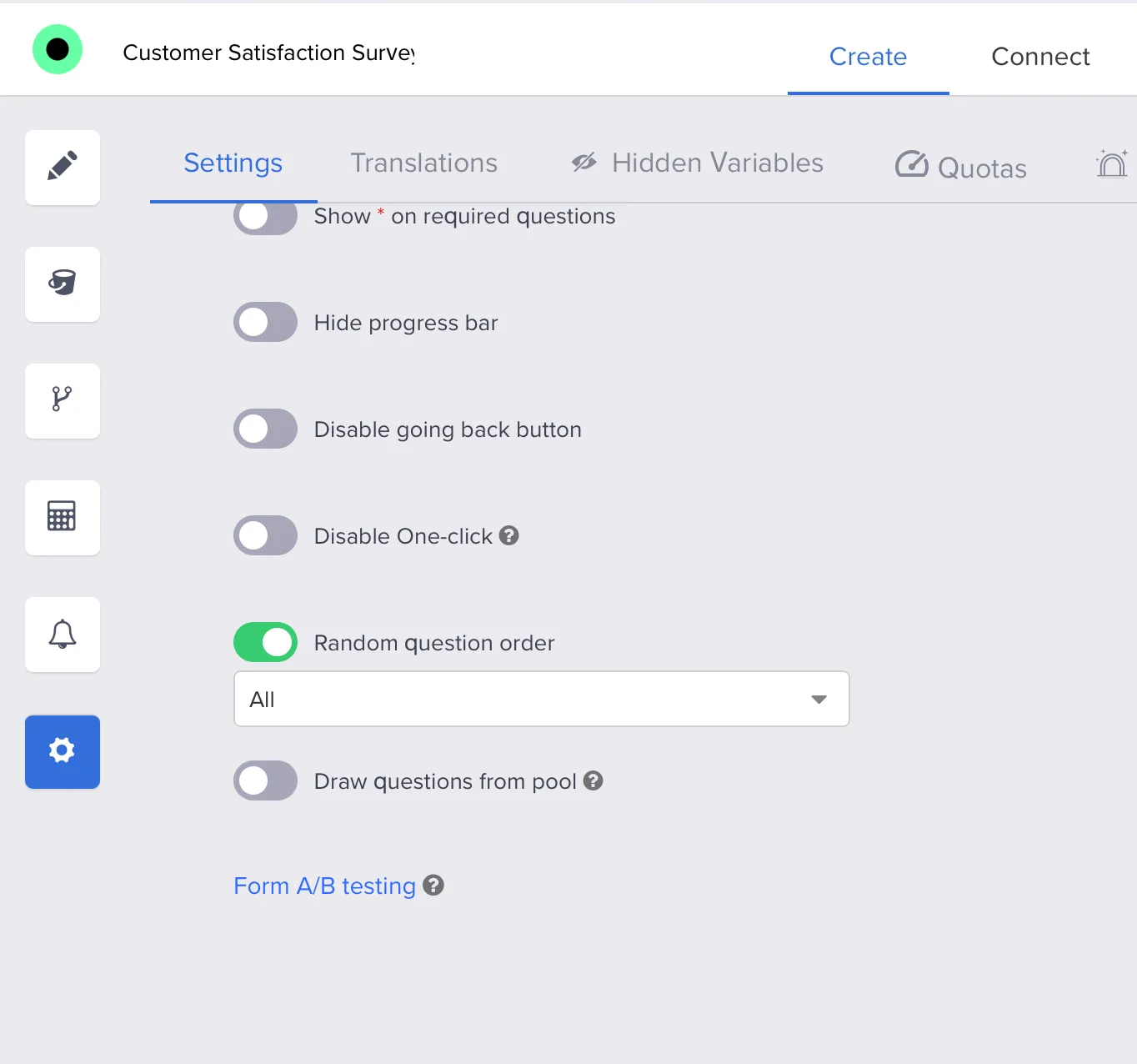
The four randomization modes
| Mode | What it does | When to use it |
|---|---|---|
| All | Every page is shuffled for every respondent. | Question banks and research batteries where no page has a fixed job. |
| All except first | The first page keeps its position, everything after it rotates. | A consent screen, a welcome message or a screener question that has to come first. |
| All except last | The last page keeps its position, everything before it rotates. | A closing question, a contact-details page or a final comment box. |
| Lock custom pages | You mark the exact pages that must stay put; every unlocked page is shuffled around them. | Anything more complex — for example pinning both an intro and a closing page, or keeping a block of related questions in sequence. |
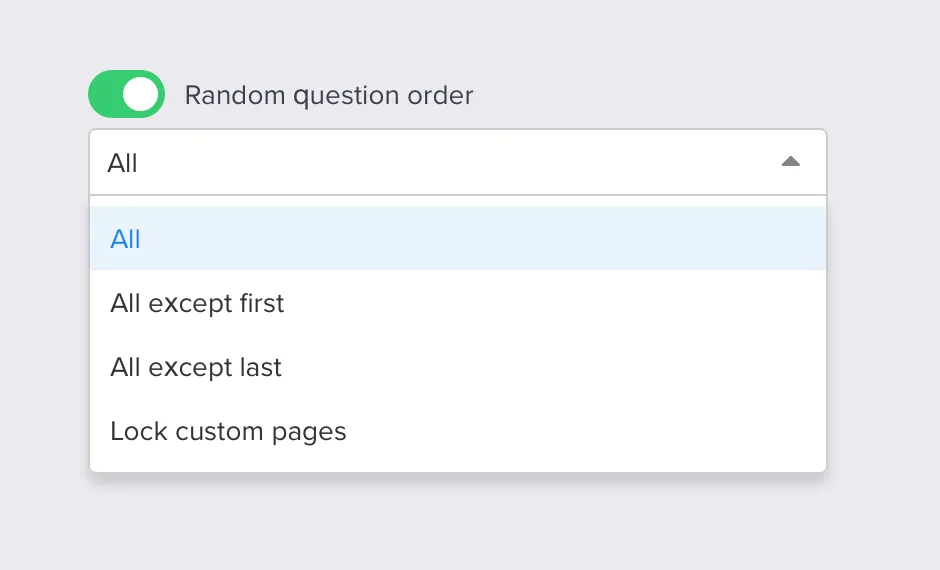
Lock custom pages is the flexible one. After choosing it you get the list of your pages with the prompt “Select pages that will not be randomized”. Click the padlock on any page to pin it. Locked pages are highlighted and hold their position; the rest are shuffled into the remaining slots.
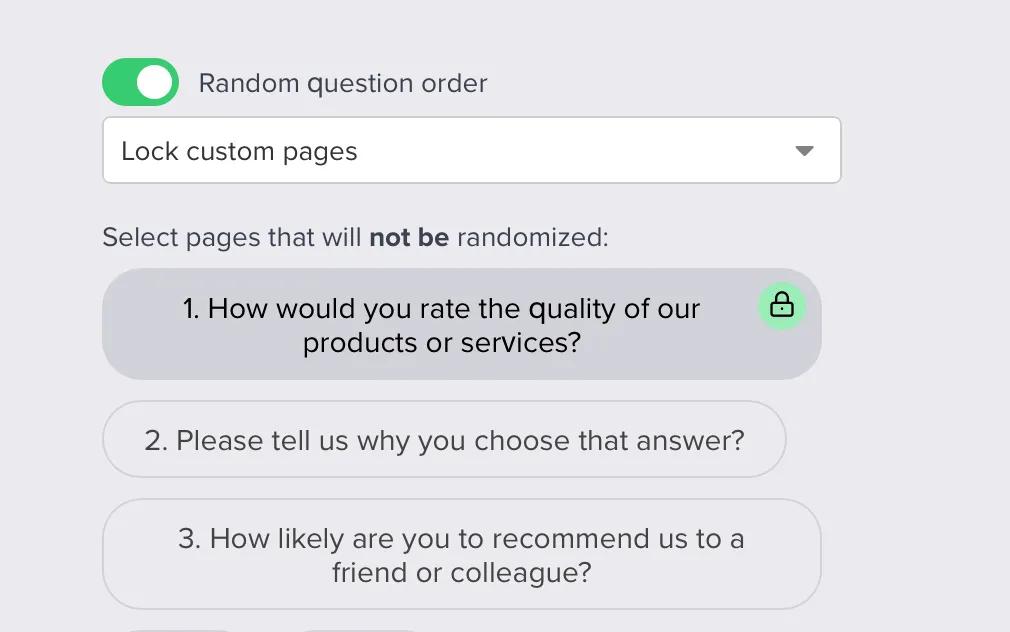
Use it when more than one page has a job that depends on where it sits — a consent page at the start and a contact page at the end, a screener that must run before the questions it filters, or two questions that only make sense read together.
Randomization and skip logic do not work together. If you turn on random question order in a survey that uses skip logic, it is the logic that stops working — your branching rules no longer fire and everyone gets the shuffled flow instead of the path you designed. Nothing warns you about it in the results, so decide up front which one the survey needs: shuffle the order, or route people with logic.
Randomize answer options on Choice questions
Question order and answer order are separate settings. On Choice questions you can show answer labels in a random order for each respondent, whichever question order you picked. That is useful when position might otherwise hint at the “correct” option in a test, or when you want a fairer spread of clicks in research.
- Select the Choice question in the editor.
- In the right-hand panel, enable Random order.
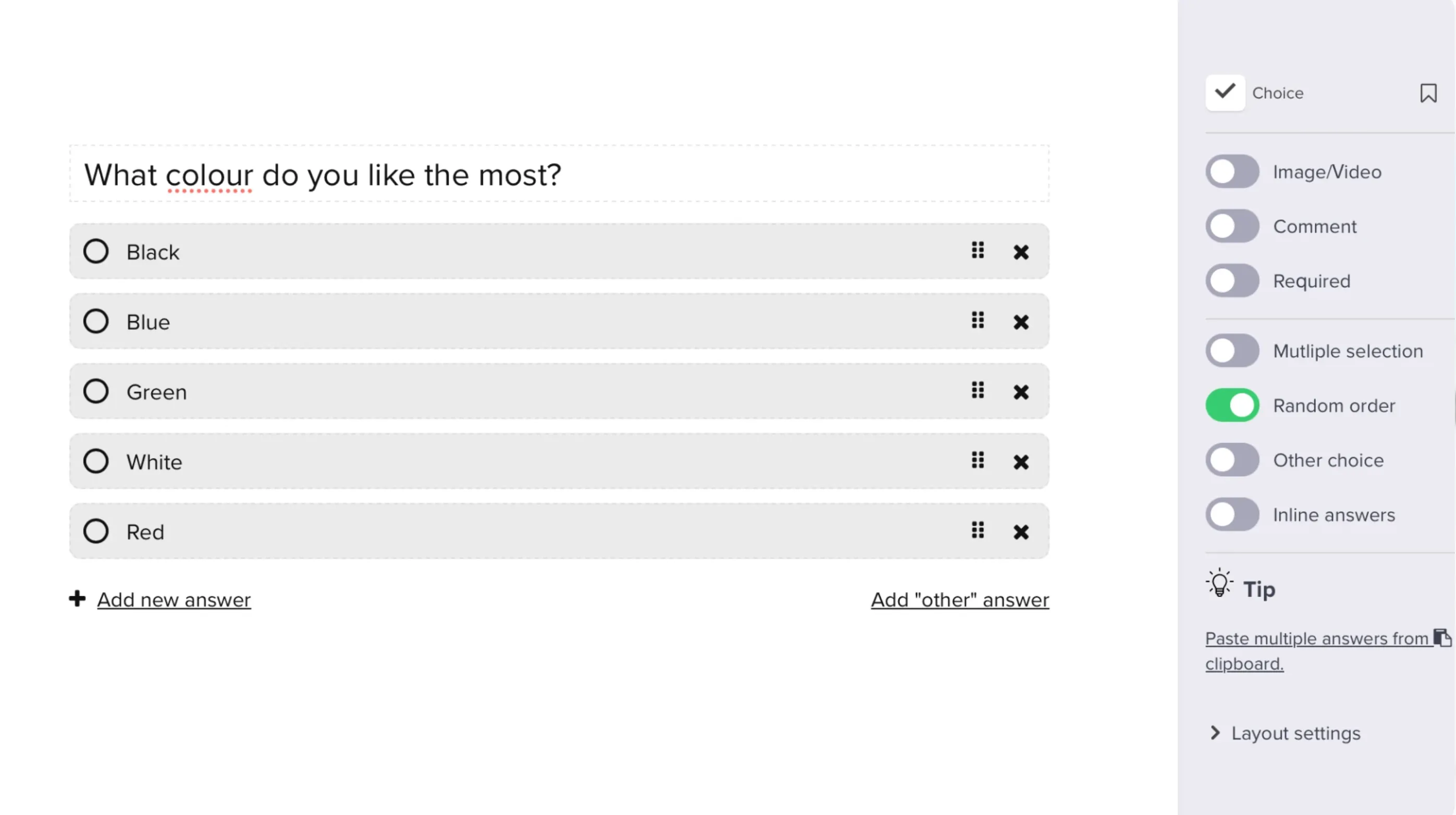
Answer randomization applies to that one question, so you can shuffle the options on an attitude battery while leaving a rating scale in its natural low-to-high order. Never randomize answers on a scale question — a shuffled 1–5 scale is unreadable.
Show only some of your questions
Random order changes the sequence of your questions; every respondent still answers all of them. If you want each respondent to get a different subset — say 3 questions drawn from a bank of 5 — use Draw questions from pool instead. The two settings work together: draw the subset, then shuffle what was drawn.
For more on why order matters, see Survey response bias.