Rewarding people for finishing a survey lifts completion rates—and the simplest reward is a discount code shown on the end page. Using a hidden variable, you can display a different code for each respondent, which is ideal for post-purchase thank-yous, research incentives, and loyalty rewards.
The idea is straightforward: you create the codes in your store or marketing tool, then pass each person’s code into the survey link, and Responsly shows that value on the thank-you screen.
Before you start: Responsly does not generate discount codes for you. Prepare the codes yourself in your e-commerce platform or promotion tool first.
How it works
Responsly displays whatever value you send in the survey URL through a hidden variable:
- You define a hidden variable (for example a promo-code field) and place it in the end-page text.
- Each survey link carries that respondent’s code as a URL parameter.
- When someone submits the survey, Responsly swaps the variable for their code on the end page.
This is the same mechanism used for unique codes for each respondent—here you’re just showing the value back to the respondent instead of only storing it.
Step 1: Add a hidden variable for the code
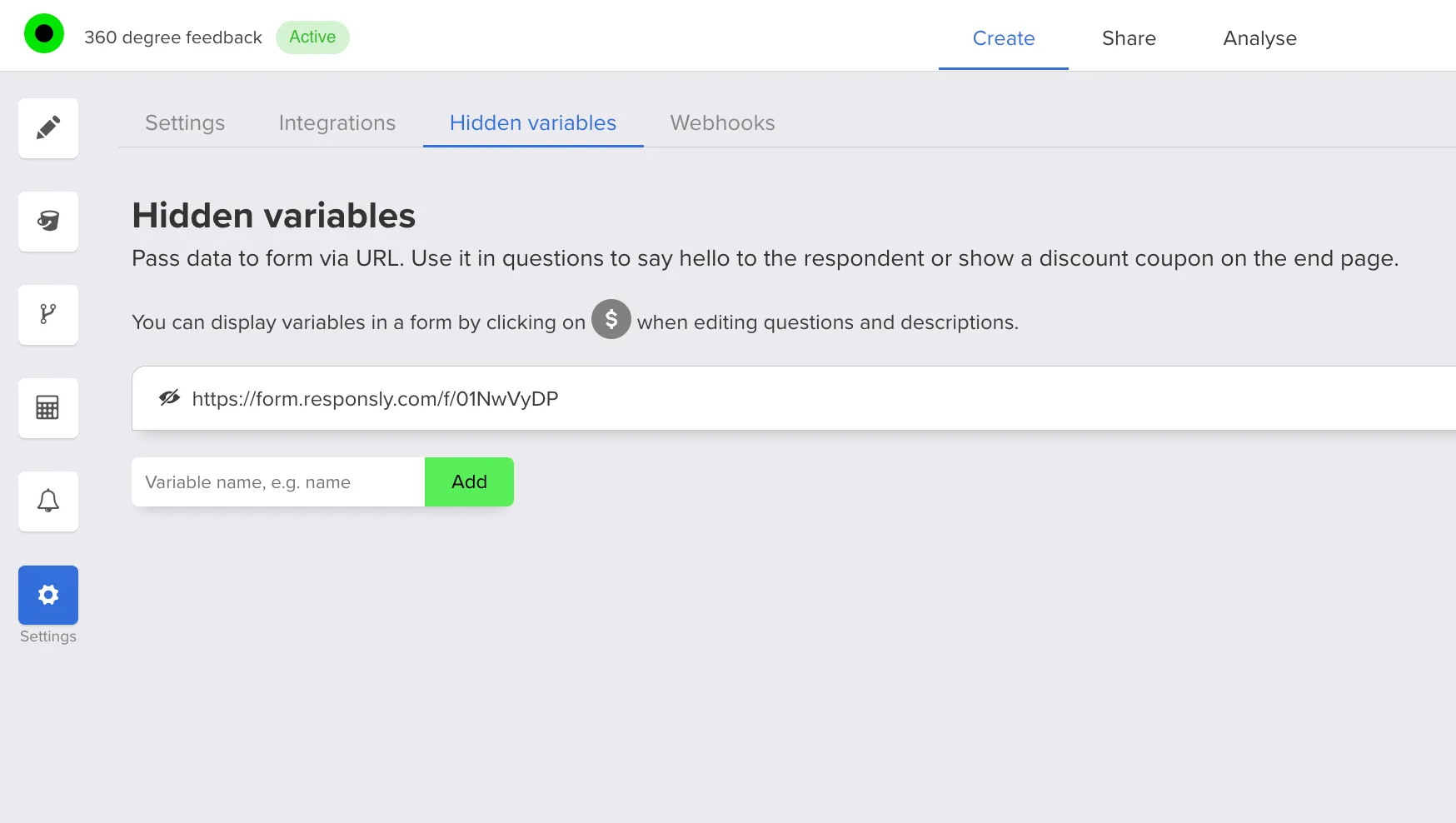
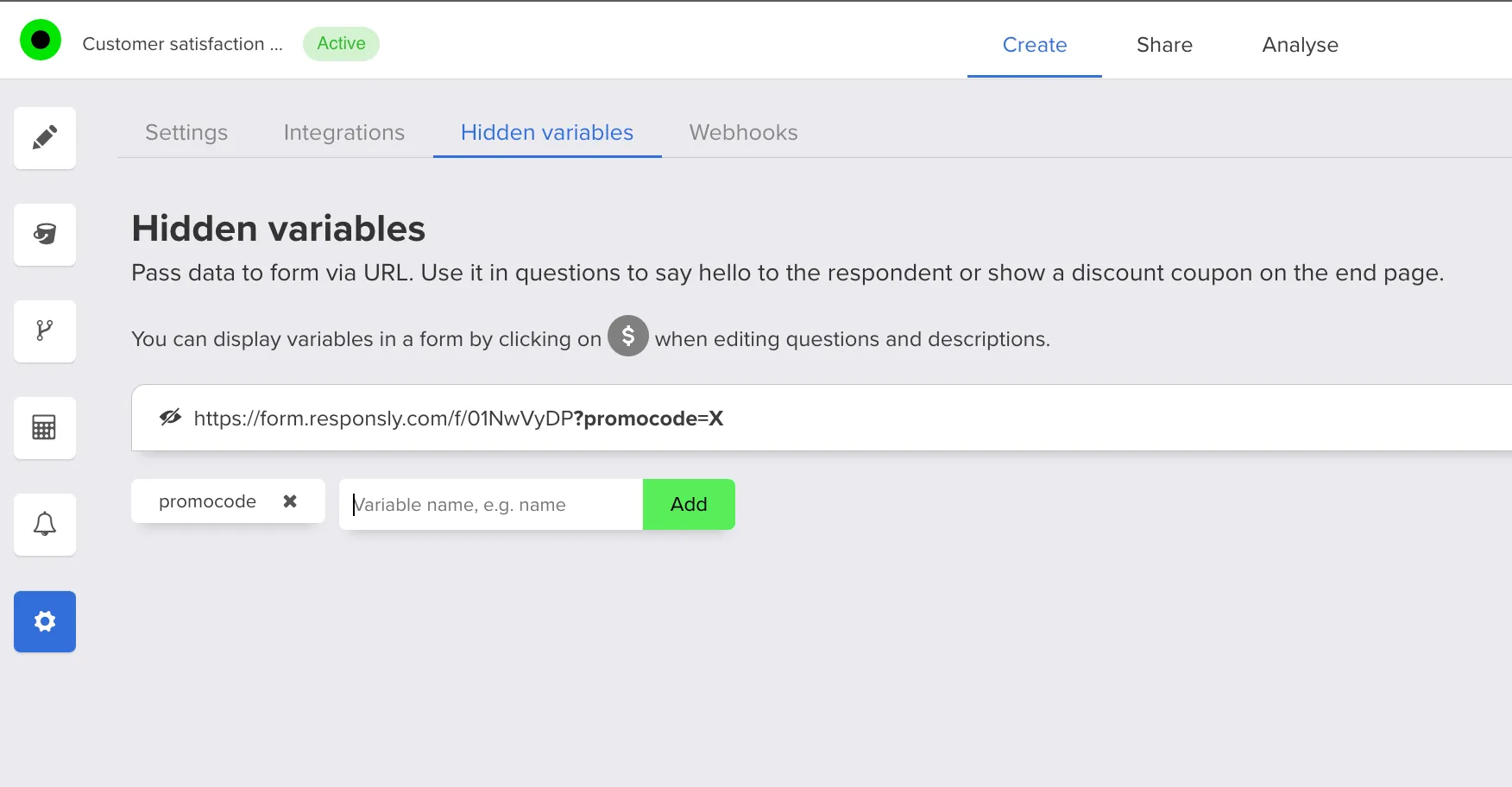
- Open your survey and go to Settings → Hidden variables.
- Add a new hidden variable and give it a clear name (for example
promoordiscount_code).
Step 2: Insert the variable on the end page
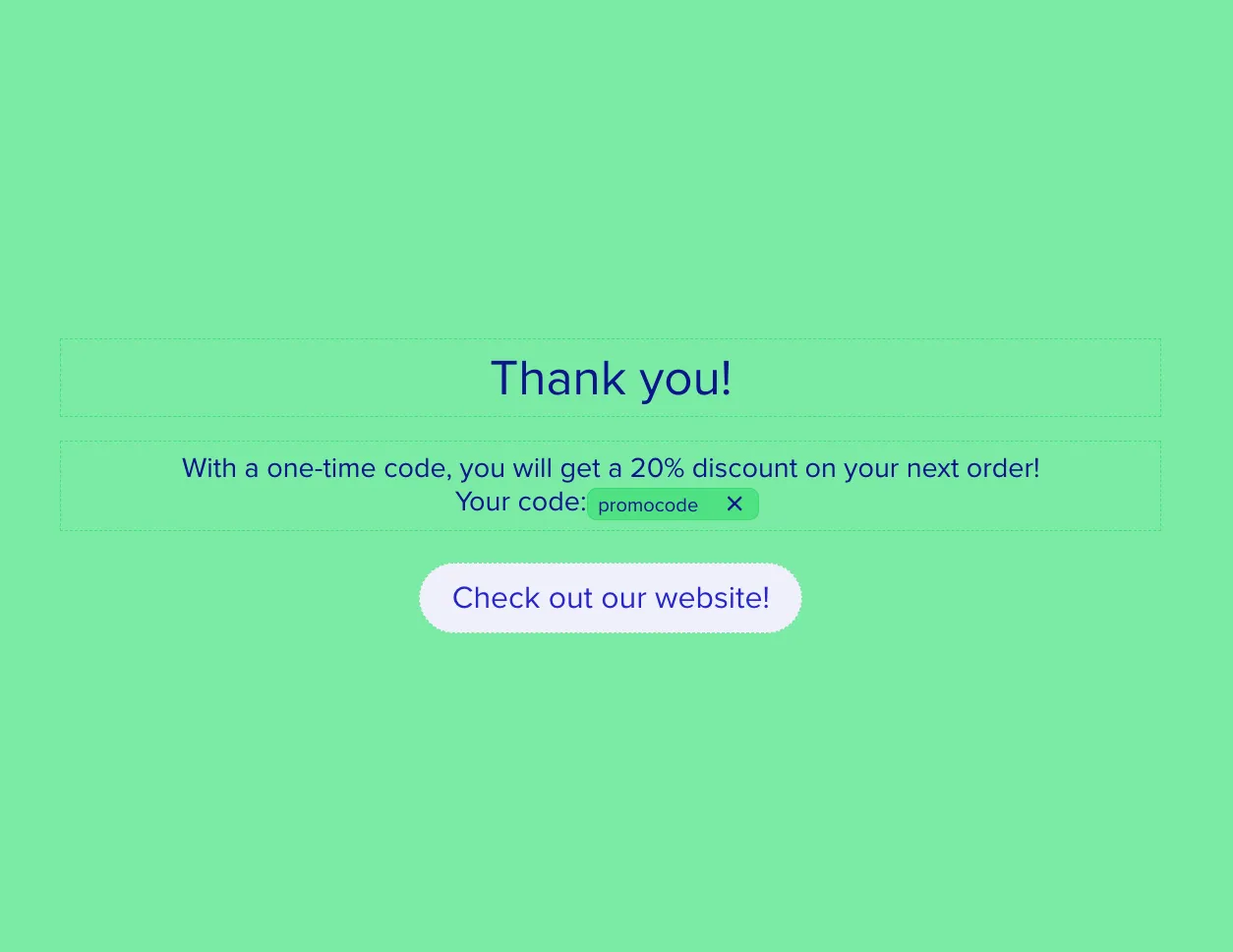
- Open the end page of your survey for editing.
- In the text editor, click the $ button to insert a variable into the content.
- Select your promo-code variable so it appears inside the thank-you message (for example: “Thanks! Here’s your code: $promo”).
Step 3: Copy the survey URL with the variable
Back in Hidden variables, copy the survey URL that already includes your variable name as a parameter.

The placeholder value in this URL is usually just X—for example ?promo=X.
Step 4: Send each respondent their own code
For every link you send, replace the X placeholder with that person’s real discount code. How you do this depends on how you distribute the survey:
- Email survey or CRM tool — use a merge field or mail-merge column so each recipient’s code is inserted automatically.
- Manual sends — paste the individual code into the URL before sharing it.
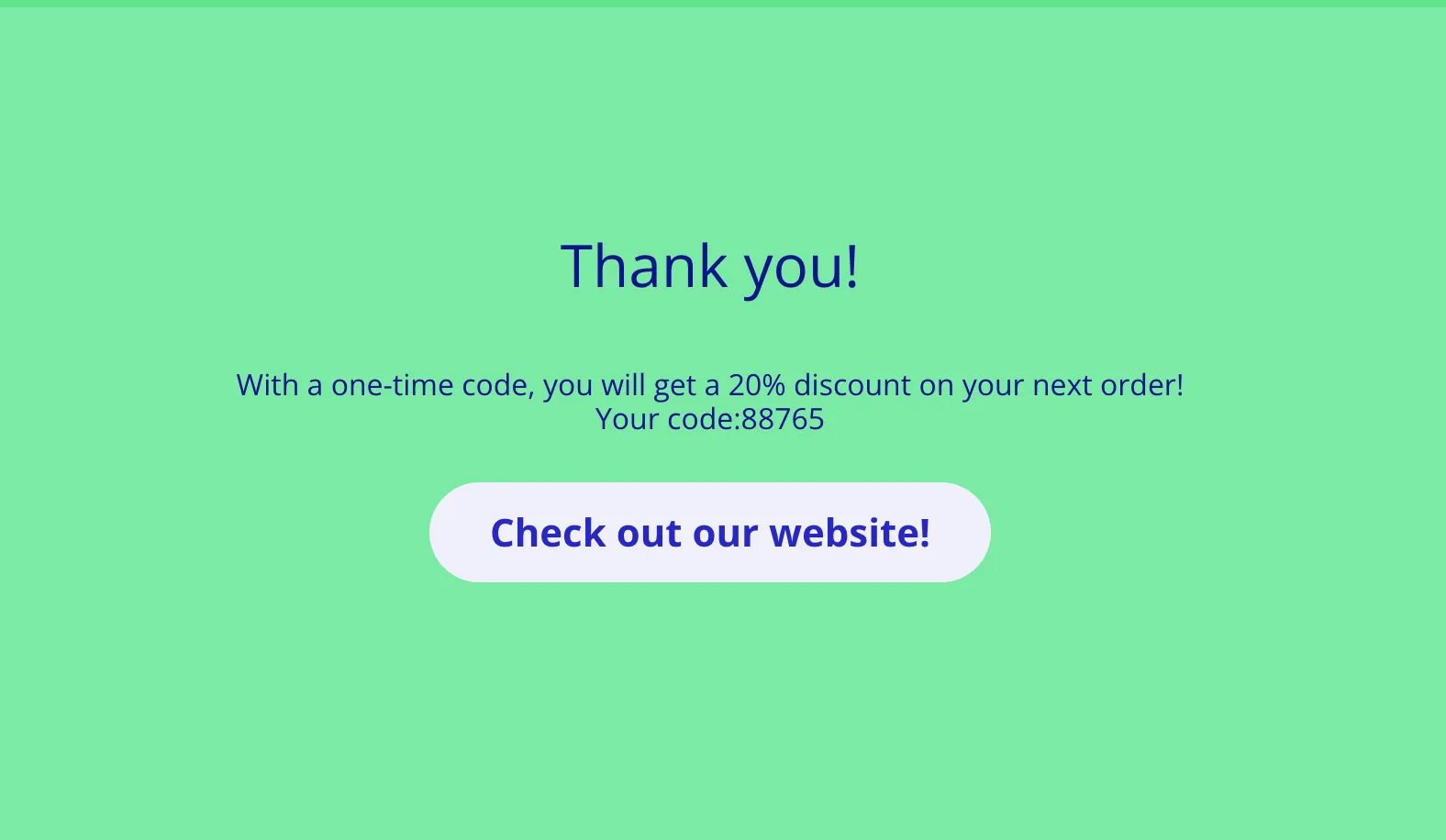
When the respondent finishes the survey and reaches the end page, they see their personal promo code:
Test before you launch
Open one of your personalized links yourself, complete the survey, and confirm the correct code appears on the end page. Check on both desktop and mobile so the thank-you message stays readable.
Related guides
- Unique codes for each respondent — the same URL pattern for tracking, not just rewards.
- Greeting the respondent — personalize the welcome screen with a name token.
- End page of the survey — other closing-screen layouts and options.
- What are hidden variables? — how tokens like
$promoare defined, passed, and reused across a survey.