One of the ways to share forms is to embed them directly on your website. This lets visitors answer surveys without leaving your site – perfect for short CSAT score, NPS, or website‑feedback surveys. For popups that open on a timer or scroll, see Automatic website widget.
After preparing and testing a survey, go to the Share tab to embed it on your site. You can also share a standalone URL from Sharing survey link or print a QR code for offline touchpoints.
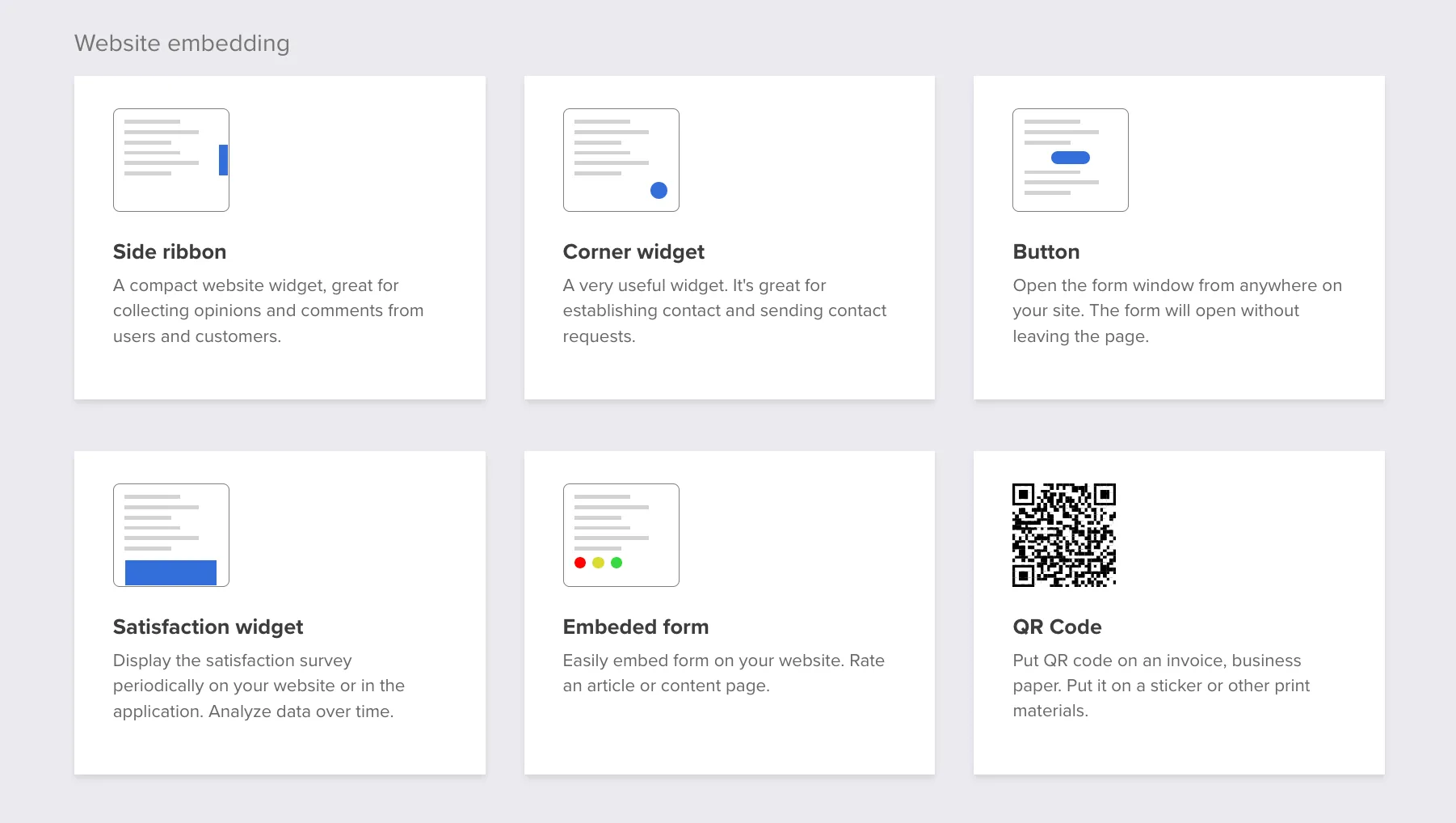
You can choose how the survey should appear:
- side ribbon
- corner widget
- button
- satisfaction widget
- embedded form in the page body
1. Widget
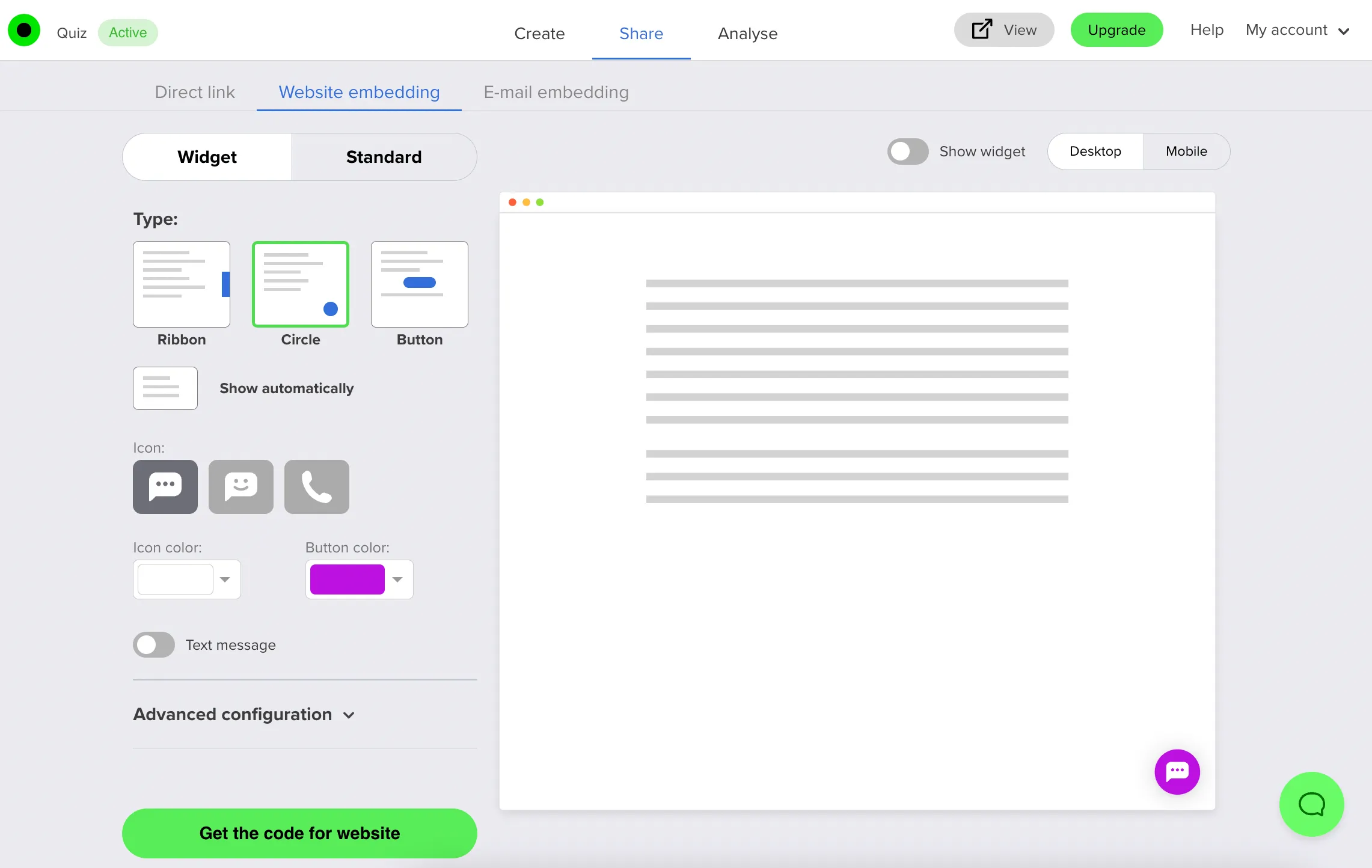
In the Design menu on the left you can customize the popup appearance. Depending on the type of survey you embed, you can change:
- button type and icon,
- colors,
- behavior after the form is filled.
In particular:
- type any text you like into the Button text field (up to 25 characters) – that’s what appears on the trigger button,
- use the Color picker or hex code to set button color,
- adjust Border radius to control how rounded the button corners are (0% = square, 100% = pill‑shaped),
- use advanced settings to choose the window type and decide whether to close the widget after the form is submitted.
2. Standard embed
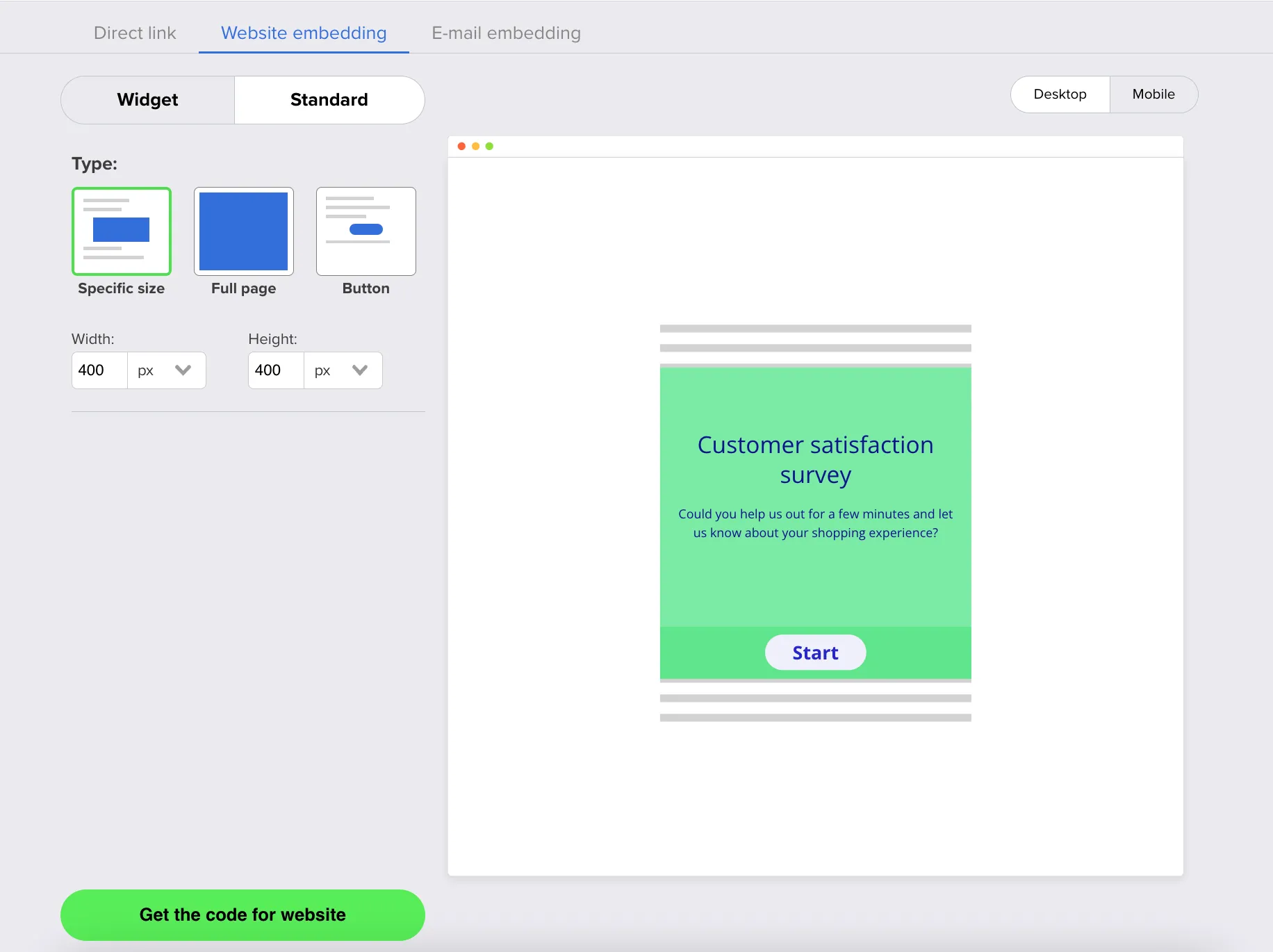
Embedding the form in Standard mode loads it in the place where you paste the code in your HTML. You will see a live preview of the embedded survey in the center panel.
You can:
- change the height and width of the survey,
- click Get the code for website to generate embed code based on your settings.
3. Grab your embed code
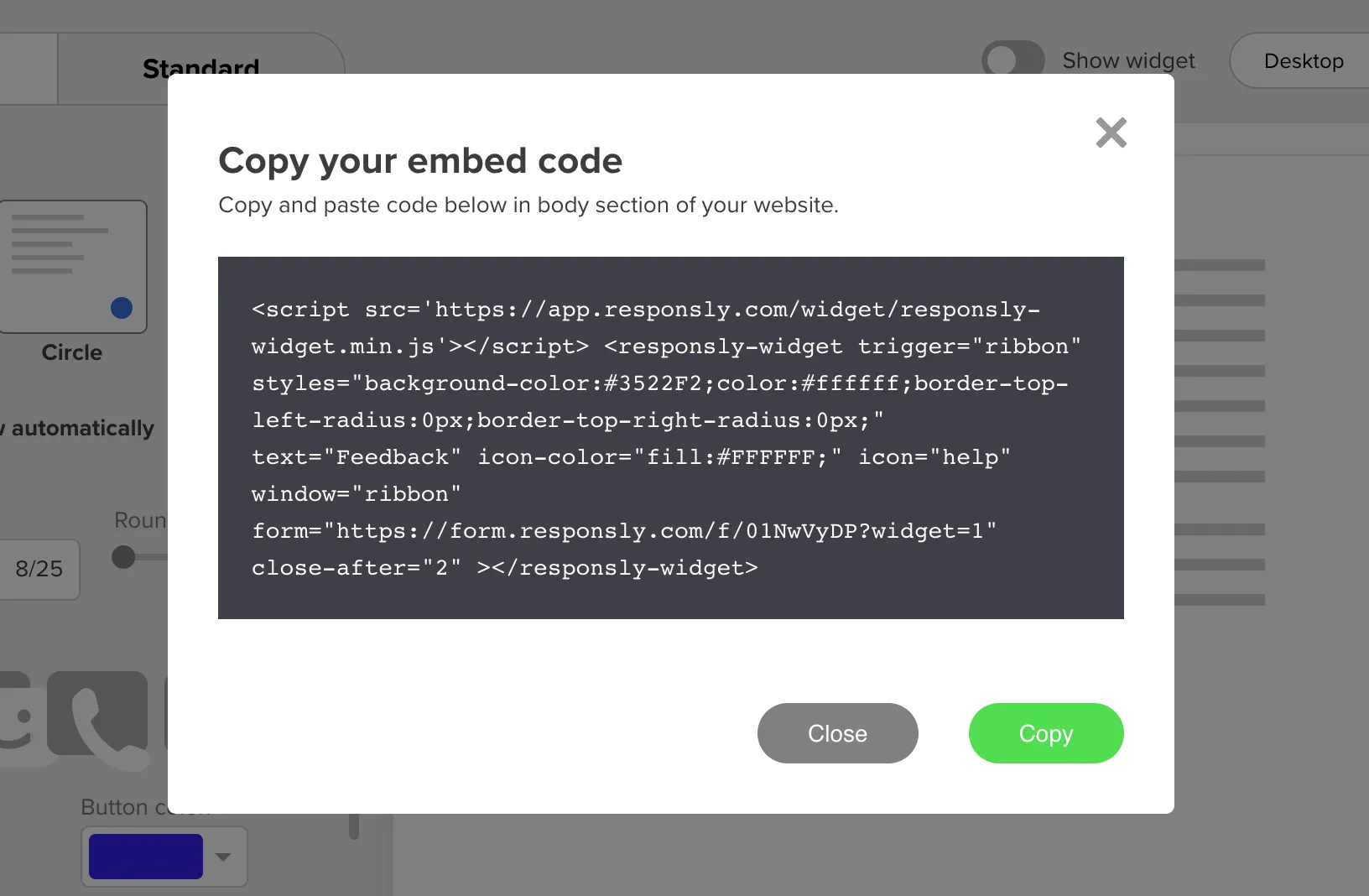
When you’re happy with your settings, click Get the code for website and copy the generated HTML.
Paste it into your site’s template, CMS, or tag manager where you want the survey to appear.
Related workflows
Publish your form with How to create a survey, open widgets automatically with Automatic website widget, and align survey URLs with your brand using Custom domain. Building on Webflow? See the Webflow surveys integration for platform-specific embed patterns.